
Troubleshooting
Sync status icons
What the Nectenda status icon and the marks beside notes in the file explorer mean, colour by colour, and what to do about each one.
Nectenda shows its state with its status icon, the Nectenda mark, and with a small mark beside each note of a shared folder in the file explorer. Hover over either to read what it means in words — the colour is only the quick version. Colours follow your Obsidian theme, so the exact shade varies.
The status icon
The icon can appear in up to three places, and each one looks and works the same:
- In each note's header, at the top right. It describes that note.
- In the ribbon. It describes the note you are in, or just the connection when no note is open.
- In the status bar, at the bottom of the window, on a computer. It works like the ribbon icon.
Choose which to show on the Editing page of the Nectenda settings, under Nectenda status. The header and the ribbon are on to begin with, and at least one place always stays on.
Its colour is the state of the connection and of the note.
| Colour | Means |
|---|---|
| Green | Connected, and this note is up to date — or the note is not in a shared folder. |
| Accent (your theme's highlight colour) | Connected, and this note is sending or receiving changes. |
| Faint grey | Offline, reconnecting, or the server is briefly updating — or this note is not connected yet. Keep working; changes are saved on this device. |
| Red | Something needs you: the device limit is reached, the plugin needs updating, the organisation is suspended, or this note has a sync problem. |
| Muted grey | Signed in, but not syncing any organisation on this device. |
Two small marks can appear on the icon, together or on their own:
- A number at the bottom right is how many other people have this note open.
- A dot at the top right means something is waiting for you: an invitation, or a folder someone shared with you.
Click the icon, wherever it is, for the same menu:
- the status in words, including how many folders sync in this vault
- Go to each person in the note, which moves you to their cursor
- Shared with you, when something is waiting
- for a note in a shared folder: Folder settings…, Invite to folder… if you own it, and Inspect sync state
- the two mouse-pointer switches
- Open Nectenda settings
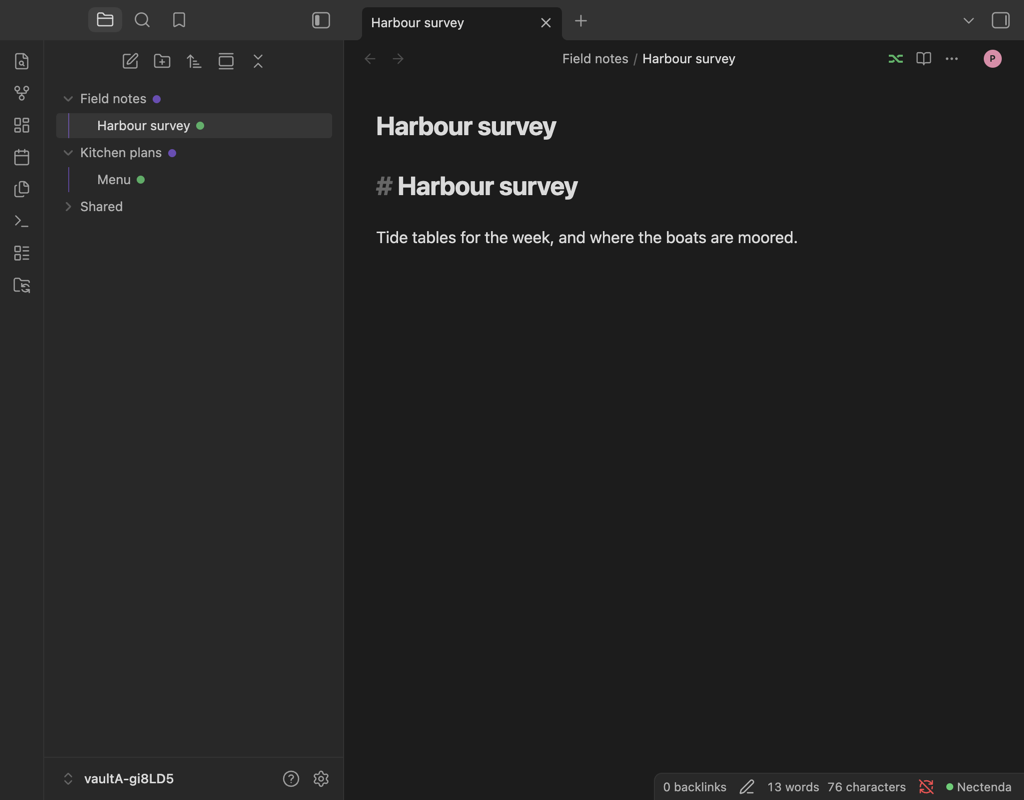
The file-explorer marks
With Show sync status in the file explorer on (Settings → Nectenda → Editing), each note in a shared folder has a mark after its name.
| Mark | Means |
|---|---|
| Filled green dot | Synced: the server has every change from this device. |
| Accent-coloured ring | Syncing: a change is on its way, or the note is catching up. |
| Grey ring | Offline: changes are saved on this device and will sync when you reconnect. |
| Dashed ring | Not syncing yet: this note is not connected to the server. Usually brief, while a folder connects. |
| Red ! | Sync problem. Hover to read which. |
What to do about red
Hover to see which problem it is:
- Device limit reached — see Device limit reached.
- Update the plugin to keep syncing — see Update required.
- Account suspended — your notes are safe on this device; the organisation's page in settings says more.
- A change in this note is too large to send — the note is over the size limit. Split it, or remove the large part, and it syncs by itself. Nothing is lost meanwhile.
- An update could not be decrypted — Nectenda asks for it again on its own. If it stays red, see Waiting for a key.