
Share and collaborate
Add a shared folder to this vault
When someone shares a folder with you, add it to your vault in one click, or choose where it goes. Your existing notes are never shared by accident.
A folder shared with you does not appear in your vault until you add it. You can add the same folder to each of your vaults and devices.
Before you start
- You have joined the organisation the folder belongs to. See Join by invitation or link.
- The folder's key has reached you. Until it has, the folder waits; see Waiting for a key.
Steps
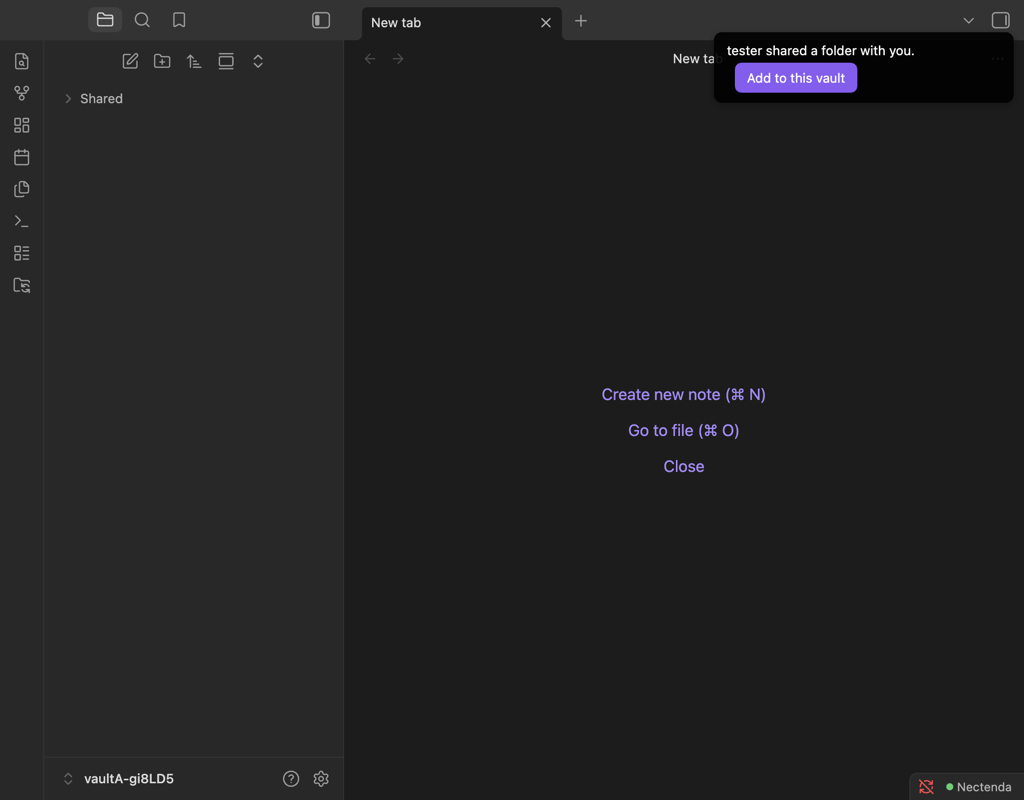
- When the folder is ready, a notice says … shared a folder with you. Choose Add to this vault.
- Nectenda creates the folder under its own name and starts syncing it.
The folder is also listed in Settings → Nectenda, under Shared with you. Choose Add to vault beside it there to do the same thing.
If a folder with that name already has notes in it, the shared folder goes beside it with "(shared)" after its name — Notes (shared) for a folder called Notes — instead, so your own notes are not uploaded to everyone.
To choose where it goes
- Open Settings, choose Nectenda, and open your organisation under Organisations.
- Under Shared folders, find the folder in the Available to add list and choose Choose location….
- Pick an empty folder, or a new one.
Check the result
The folder is in your file explorer, and its notes appear as they download. With Show sync status in the file explorer on, each note's mark turns solid green when it is up to date.
Troubleshooting
Several folders were shared at once
The notice says how many and offers Show them, which opens the Nectenda settings. Each folder is listed under Shared with you; choose Add to vault beside each one you want.
I dismissed the notice
The folder is still listed in the Nectenda settings under Shared with you, and on your organisation's page under Available to add. Add it from either.
It says the key could not be unlocked
The folder's key has not been shared with you yet, or your passphrase has not been entered on this device. Enter it in Settings → Nectenda → Security → Encryption with Enter passphrase, and see Waiting for a key.