
Your account
Signed-in vaults and passkeys
See every vault signed in to your Nectenda account, sign one out from another device, and remove passkeys you no longer use.
Each vault you sign in counts as a separate sign-in, even two vaults on one computer. If you lose a laptop, or leave a vault signed in somewhere you should not have, sign it out from here.
Before you start
- A vault that is still signed in, on any device.
Steps
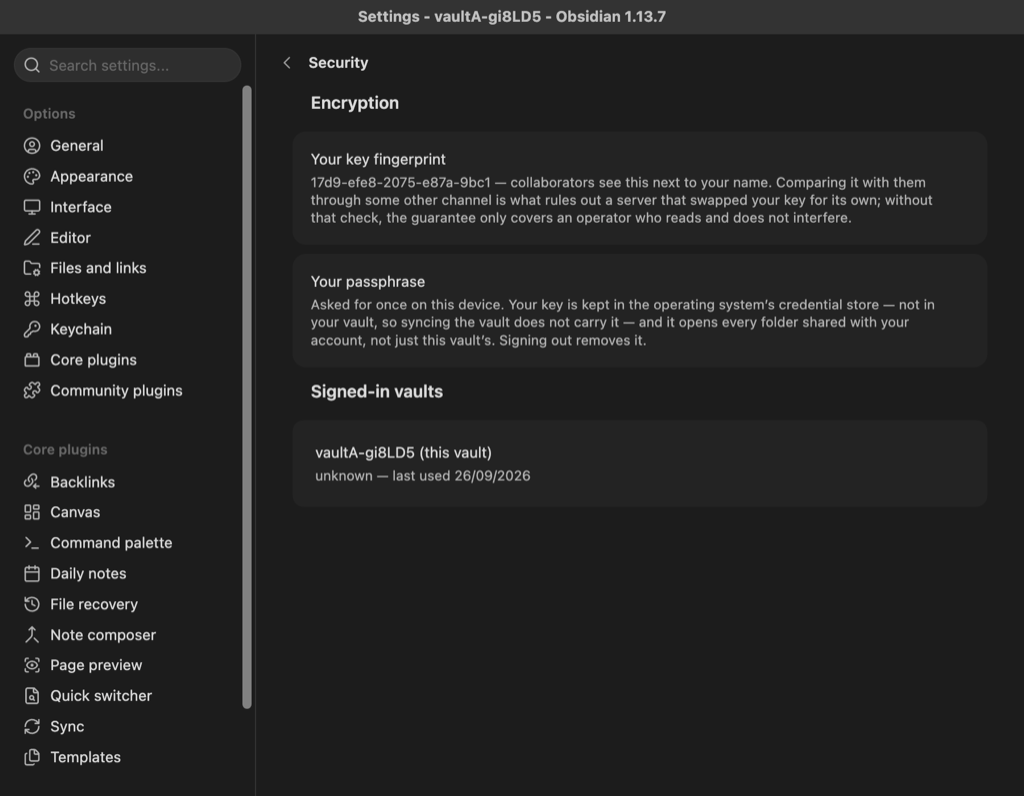
- Open Settings, choose Nectenda, and under More open Security. Scroll to Signed-in vaults.
- Each vault is listed with its platform and when it was last used. Yours says (this vault).
- Choose Sign out beside any other vault to end its sign-in.
To sign out the vault you are in, go back to the main Nectenda settings and choose Sign out beside Signed in as, under Account.
Remove a passkey
- Under Passkeys, on the same Security page, find the one you no longer use.
- Choose Remove.
To add a passkey, sign in with Use a passkey and follow the browser's offer to create one. See Sign in.
Check the result
A notice says That vault will have to sign in again. The next time that vault is opened, it is signed out, and its key is removed from that device's credential store.
Troubleshooting
What happens to the notes in a vault I sign out?
Nothing. They stay on that device as ordinary files. They stop syncing until it signs in again.
Signed-in vaults and devices are not the same list
They are not. A device is a machine, and it holds one of your plan's device slots in each organisation; it is listed on the organisation's page under Devices, in the Plan, storage and devices section. Signing a vault out does not free a device slot — removing the device does. See Device limit reached.