
Share and collaborate
Share a folder
Turn a folder in your Obsidian vault into a shared folder, encrypted on your device, so you can invite people to edit it with you.
Sharing a folder uploads its notes, encrypted, and makes you its owner. Nobody else can see it until you invite them.
Before you start
- Sign in and set your passphrase.
- A folder to share. It can be new and empty, or already hold notes.
- The folder must not be inside a folder that is already shared, or contain one.
Steps
- In the file explorer, right-click the folder (long-press on a phone).
- Choose Nectenda: Share folder….
- If you belong to more than one organisation, choose which one the folder belongs to. Only people in that organisation can be invited to it.
You can also open the command palette and run Nectenda: Share a folder…, or choose Share a folder… under This vault in Settings → Nectenda, then choose the folder.
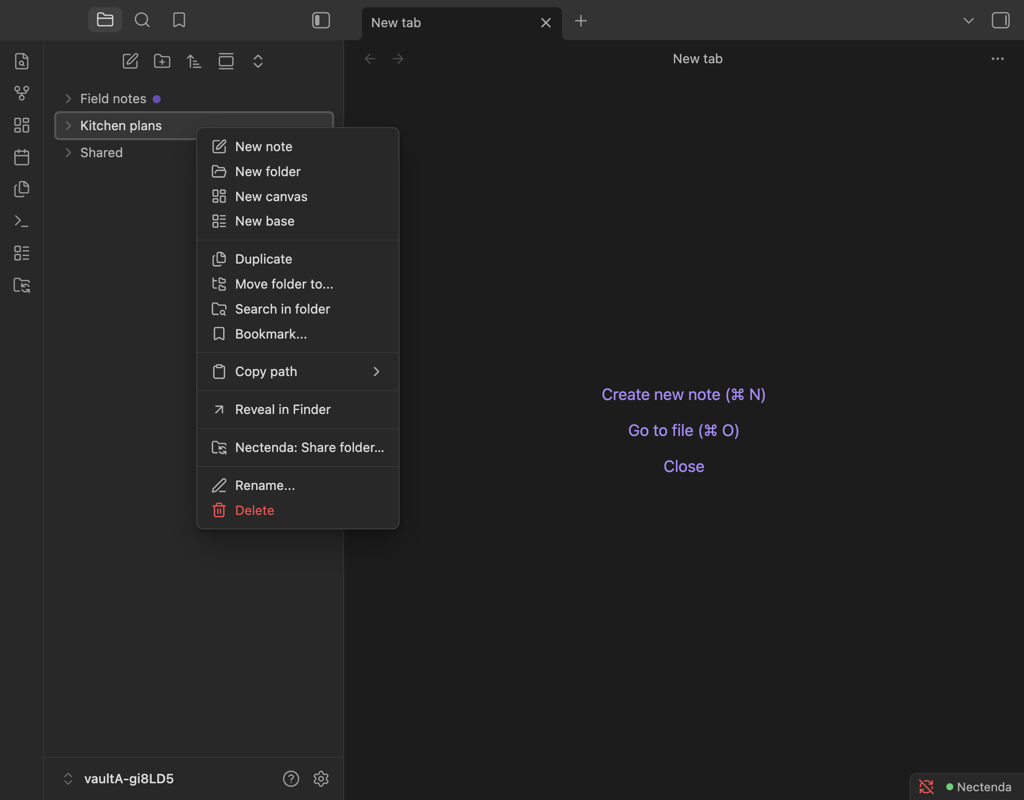
Check the result
A notice says Folder "…" is shared. With Show sync status in the file explorer on, each note in the folder gets a small mark beside its name, which turns solid green once the server has everything. See Sync status icons.
The folder also appears in the Nectenda settings under This vault, where choosing it opens its own page, and on your organisation's page under Shared folders → In this vault.
Troubleshooting
The menu item is not there
It only appears when you are signed in, your passphrase is set, and the folder is not already shared or inside a shared folder. For a folder you already share, the menu offers Nectenda: Invite to folder…, Nectenda: People… and Nectenda: Folder settings… instead.
It says the folder is already shared
The folder, or one around it, is already shared in one of your organisations. The notice names it. Share a different folder, or stop syncing that one first.
Does sharing copy my notes somewhere?
It uploads an encrypted copy so other vaults can fetch it. The notes in your vault stay exactly where they are.