
Get started
Sign in
Connect a vault to Nectenda with a passkey, a code sent to your email, or your Google, Apple or Microsoft account. Your passphrase is never part of it.
Signing in proves who you are. It is separate from your encryption passphrase, which is set afterwards and never leaves your device.
Before you start
- Install the plugin in the vault you want to connect.
- Your email address, or a Google, Apple or Microsoft account. If you were invited, use the address the invitation was sent to.
Steps
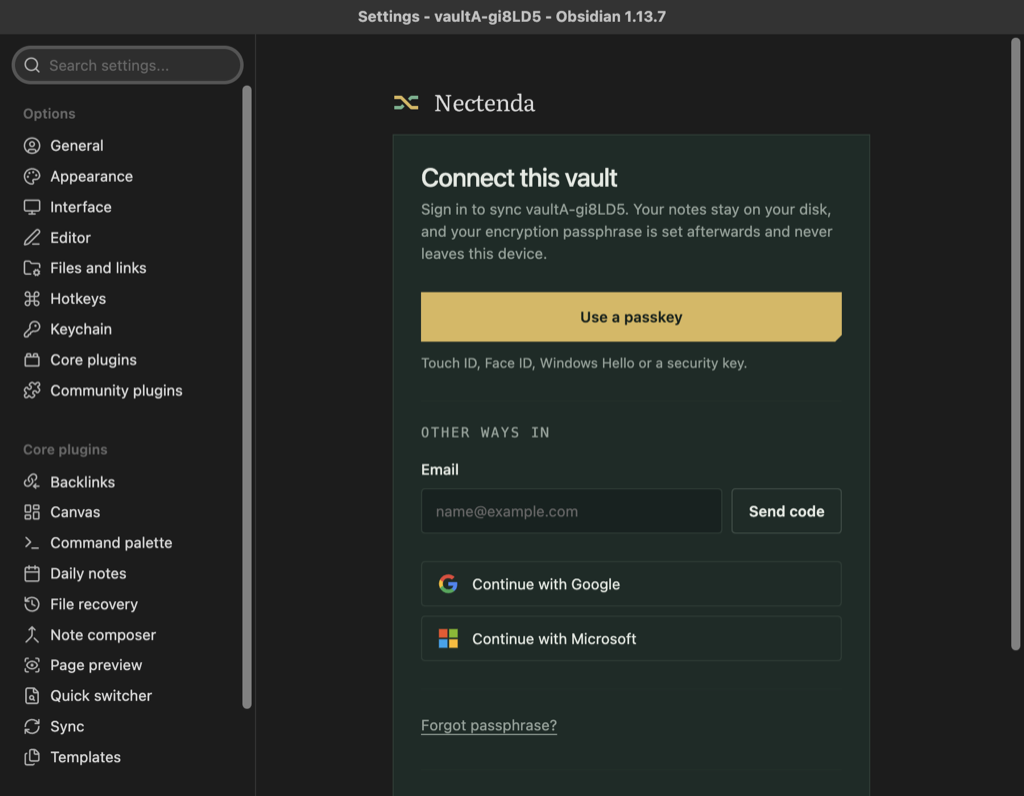
- Open Settings and choose Nectenda. You see Connect this vault.
- Choose one way in:
- Use a passkey opens your browser. Use Touch ID, Face ID, Windows Hello or a security key there. If you have no passkey yet, sign in with a code in the browser and choose Create a passkey when it is offered — next time the passkey is all you need.
- Email: type your address and choose Send code. Enter the six-digit code from the email in Code from your email, then choose Sign in. The code lasts ten minutes.
- Continue with Google, Continue with Apple or Continue with Microsoft opens your browser at that provider.
- If a browser opened, finish there and come back to Obsidian. A notice says Finish signing in in your browser, then come back here. while it waits; click the notice to cancel.
- Obsidian now asks for your passphrase. The first time, you choose one — see Choose your passphrase and save your recovery key. On any later device you type the one you already have.
Check the result
The Nectenda settings now show Signed in as with your address, under Account, and your organisations are listed under Organisations. The first time you sign in, one is made for you, ready to share folders from — unless you were invited, in which case the invitation waits under Shared with you instead.
Troubleshooting
The code has not arrived
Check your spam folder first. Then choose Send again. A code expires after ten minutes, so use the newest one.
The browser finished but Obsidian is still waiting
Switch back to Obsidian and give it a few seconds. If the notice has gone and nothing happened, the sign-in expired; start again.
I signed in with the wrong account
Choose Sign out next to Signed in as, then sign in again. Signing out does not touch the notes in your vault.
Can I sign in without a browser?
Yes. The email code works entirely inside Obsidian.